Quick Answer
- Open your Swiggy or Zomato order-history page on desktop.
- Scroll until the older orders you need are fully loaded.
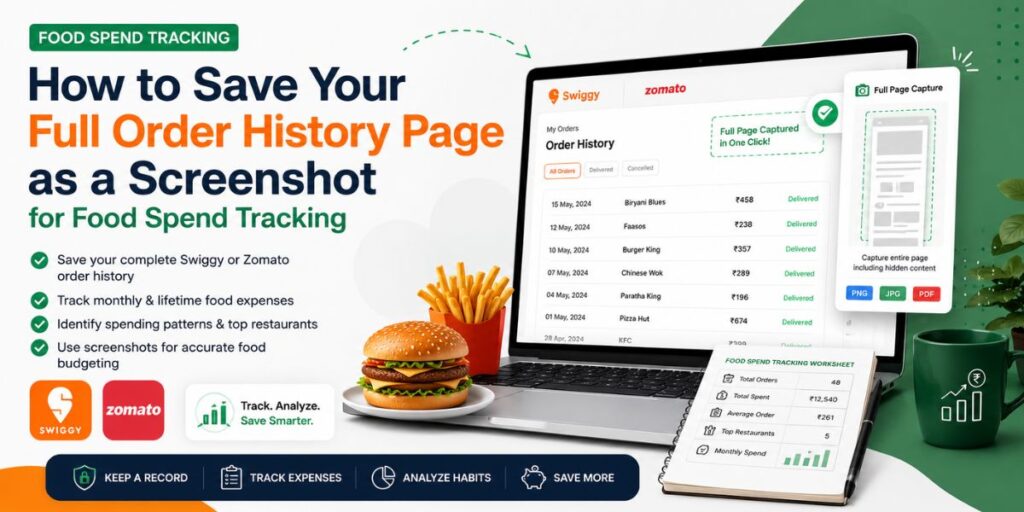
- Use a Full Page Capture Screenshot tool to save the complete order history.
- Record final paid amount, order date, restaurant and refunds.
- Group orders by month to calculate monthly food-delivery spend.
- Use average order value and repeat restaurants to understand your habit—not only lifetime spend.
If you order food regularly, your Swiggy or Zomato history can become surprisingly long. Taking normal screenshots means capturing one screen at a time, renaming several images and hoping you did not miss an order.
A better method is to create a screenshot of your food order history as one complete page. You can then keep it as a personal record, compare different months and turn scattered orders into a simple food-spending worksheet.
What Should You Track From Your Order History?
| Order Detail | Why It Matters |
|---|---|
| Date | Helps group orders by month. |
| Final Paid Amount | Shows the real cost after offers and fees. |
| Restaurant | Reveals repeat-order habits. |
| Order Status | Helps exclude cancelled orders. |
| Refund | Prevents overstating your real spend. |
Step 1: Open the Correct Swiggy or Zomato Account
Start on a desktop browser and sign in using the account you normally use for food delivery. If you have ordered through multiple phone numbers or accounts, one history page will not represent your complete spending.
Open the order-history section and check that recent delivered orders appear correctly before doing anything else.
Step 2: Load Older Orders Before Taking the Screenshot
This is the most important step. Long order-history pages often load additional records only as you scroll.
Scroll slowly through the page and allow older orders to appear. If you capture the page too early, your screenshot may look complete while actually missing months of spending.
Quick accuracy check:
Look at the oldest visible order date before capturing. If you want six months of spending but the page only reaches two months back, continue loading older orders first.
This same issue matters when calculating totals automatically. Fooddy’s food delivery spending calculator guide also recommends loading older order history before relying on monthly totals.
Step 3: Save the Complete Order History in One Screenshot
A normal browser screenshot only saves the visible section. For a long Swiggy or Zomato history, that can mean taking ten, twenty or even more separate screenshots.
Full Page Capture is useful here because it automatically scrolls through the webpage and stitches the visible sections into one complete capture.
The extension currently supports PNG, JPEG and PDF export, requires no sign-up and processes screenshots locally in the browser. For personal spending records, keeping the capture on your own device is a useful privacy advantage.
Why a full-page screenshot works well:
- One file instead of many disconnected screenshots
- Older orders remain in chronological context
- Easier to review month by month
- Useful as a backup before interfaces change
- Can be saved as an image or PDF
Step 4: Turn the Screenshot Into a Food Spend Worksheet
You do not need complicated budgeting software. Create a simple sheet with five columns:
Date → Restaurant → Final Paid Amount → Status/Refund → Month
Enter only completed orders. If a cancelled order was fully refunded, either exclude it or subtract the refund from the month’s total.
Example
| Metric | Example |
|---|---|
| Total orders | 18 |
| Total monthly spend | INR 7,560 |
| Average order | INR 420 |
| Top restaurant | Ordered 5 times |
Do More Than Calculate Lifetime Spend
A giant lifetime number is interesting, but it does not necessarily help you change your current budget.
Four numbers are more useful:
- Monthly spend: what food delivery currently costs you.
- Order frequency: how often you order.
- Average order value: how expensive each ordering occasion is.
- Repeat restaurants: where habit is driving repeat spending.
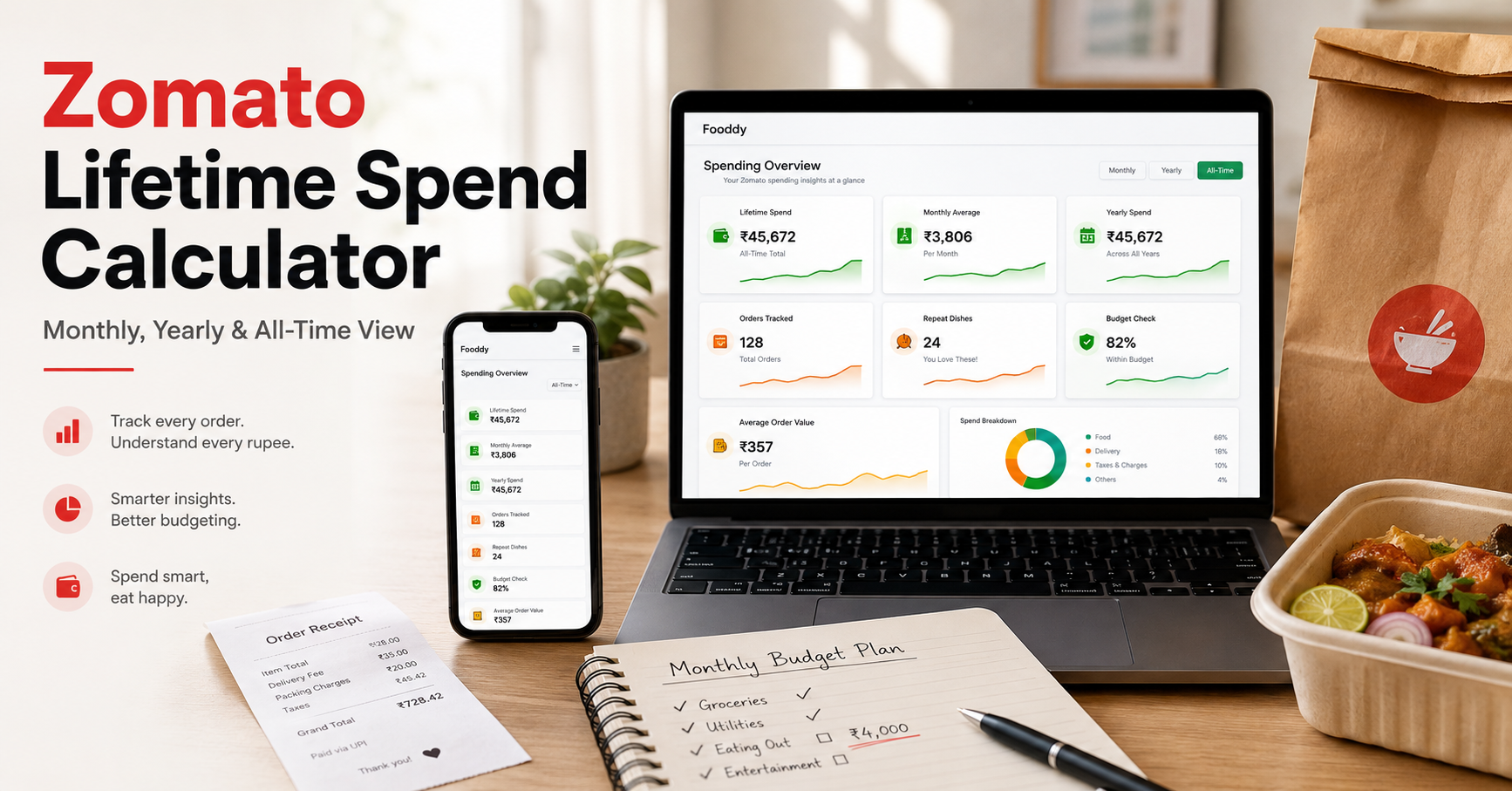
For Zomato users specifically, Fooddy’s recent Zomato lifetime spend calculator explains why monthly, yearly and all-time views should be reviewed together instead of focusing only on one big number.
A Simple Food Spend Formula
Monthly Food Delivery Spend
Completed order payments − successful refunds
Then calculate:
- Average order value = monthly spend ÷ completed orders
- Yearly estimate = monthly average × 12
- Restaurant repeat rate = orders from one restaurant ÷ total orders
When Is an Order History Screenshot Most Useful?
Monthly budgeting: Save one capture at the end of each month and compare totals.
Student budgeting: Hostel and college users can see whether small snack orders are quietly becoming a major expense.
Refund records: A screenshot can help preserve order details while a refund or support issue is still unresolved.
Long-term habit tracking: Compare old and new order-history captures to see whether your order frequency or average bill is increasing.
Protect Your Order History Screenshot
Your order history may contain personal information such as your name, order details or delivery-related information. Treat the screenshot like a financial record.
- Do not post the complete screenshot publicly.
- Crop or blur personal details before sharing.
- Store historical captures in a private folder.
- Avoid sending full order history when only one order is relevant to support.
Final Takeaway
A screenshot of your food order history is more useful when it becomes a budgeting record rather than another image stored on your computer.
Load the complete Swiggy or Zomato history, capture the entire page, record final paid amounts and refunds, then calculate monthly spend, average order value and repeat restaurants.
Full Page Capture makes the preservation step much easier because one complete screenshot keeps your long order history together. Fooddy can then help you go beyond the screenshot and understand what those orders say about your actual food-delivery spending habits.